Account/address management
User Guide: Managing Wallet Accounts
Accessing Account Management
-
From the Wallet main view, click on your wallet name at the top of the screen.
-
You will see the Wallet Management screen showing your available wallets and accounts.
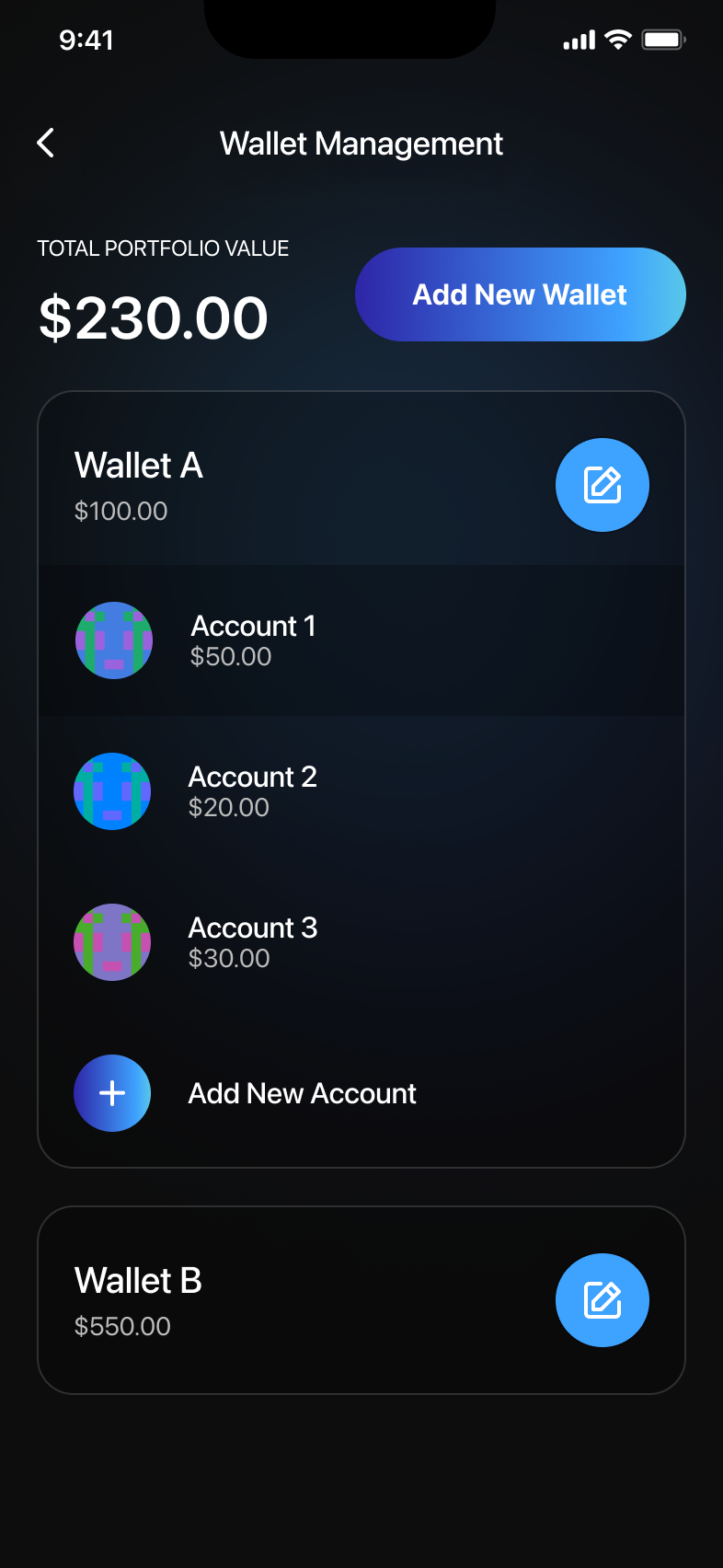
Adding a New Account
- In the Wallet Management screen, tap "Add New Account" under your chosen wallet.
- Select your preferred import method:
- Add Account Automatically (recommended)
- Select Account Manually
- A loading screen will appear, indicating the creation process.
- Upon completion, the new account will appear in the account list.
Importing Existing Accounts Manually
- Select "Select Account Manually" from the import methods.
- Choose accounts you wish to import by tapping them in the Import Accounts screen.
- Once selected, tap "Add" at the bottom of the screen.
- Imported accounts will now appear under the wallet in the Wallet Management screen.
Editing Account Information
- From the Wallet Management screen, tap the edit icon next to the wallet name.
- Tap on the account you wish to edit, rename it, or modify as needed.
- After editing, tap "Save Changes".
- Your changes will now reflect in the Wallet Management view.