Send & Receive Crypto
Step-by-step guidance to receive funds, send tokens, and tips to keep your transfers safe.
1. Receiving Cryptocurrency
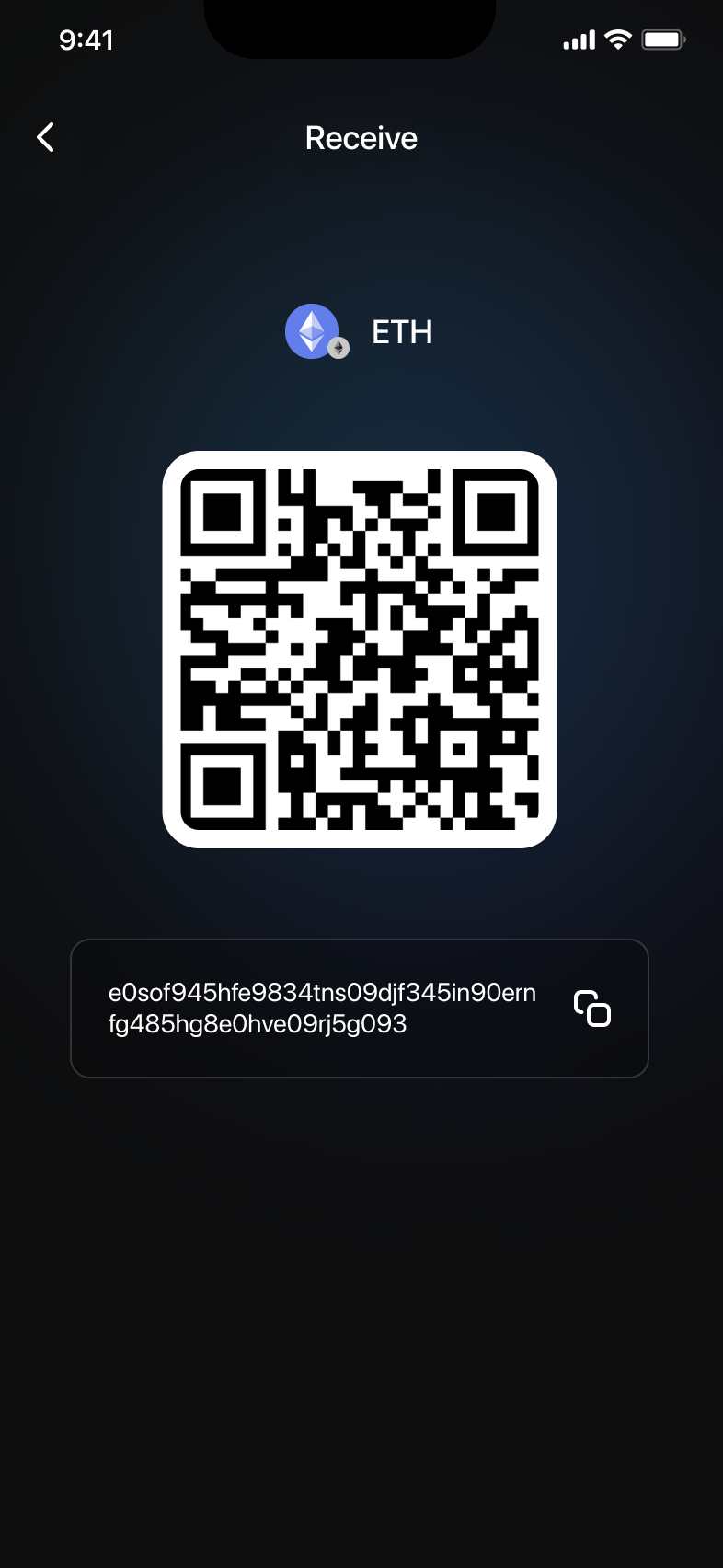
Step 1: Accessing the Receive Function
- On your main wallet screen, tap the Receive button.
- You will see a QR code and your wallet address displayed.
Step 2: Sharing Your Address
- Share your QR code for easy scanning by the sender.
- Alternatively, tap the copy icon next to your address to copy and share it directly.
2. Sending Cryptocurrency
Step 1: Accessing the Send Function
- From your wallet main screen, tap the Send button.
- The send screen displays fields for token type, amount, and receiving address.
Step 2: Selecting Tokens to Send
- Tap the token name shown (for example, ETH) to choose a different token from your list.
- Pick the desired token from the token selection list.

Step 3: Adding a Receiving Address
- Enter the recipient’s wallet address manually or paste it.
- Alternatively, tap the QR scan icon to scan the recipient's address.
- Confirm the entered address. Always double-check it — crypto transactions are irreversible.
Step 4: Setting Amount and Confirming Transaction
- Enter the amount you want to send or tap Max to send the full available balance.
- Verify the displayed amount and the recipient address before proceeding.
Step 5: Selecting Transaction Speed
- Adjust the transaction fee by choosing the preferred speed: Slow, Regular, or Fast.
- Faster speeds typically incur higher fees — pick one based on how quickly the transfer must confirm.

Step 6: Confirming and Sending
- Once all details are correct, slide the Slide to send button to confirm.
- Your transaction will be processed and the recipient will receive tokens once confirmations are complete.
3. Final Notes and Tips
- Always double-check the receiving address before confirming — incorrect addresses are permanent.
- Ensure your wallet balance covers both the amount and any network fees.
- Transaction speed affects fees; select an appropriate speed for your urgency.
- For support or troubleshooting, refer to the in-app help resources and support center.