Wallet Backup
Wallet Backup Process
Initiating Wallet Backup
On the Wallet main view, tap the "Backup wallet now" button prominently displayed. Alternatively, access the backup settings through the General settings.
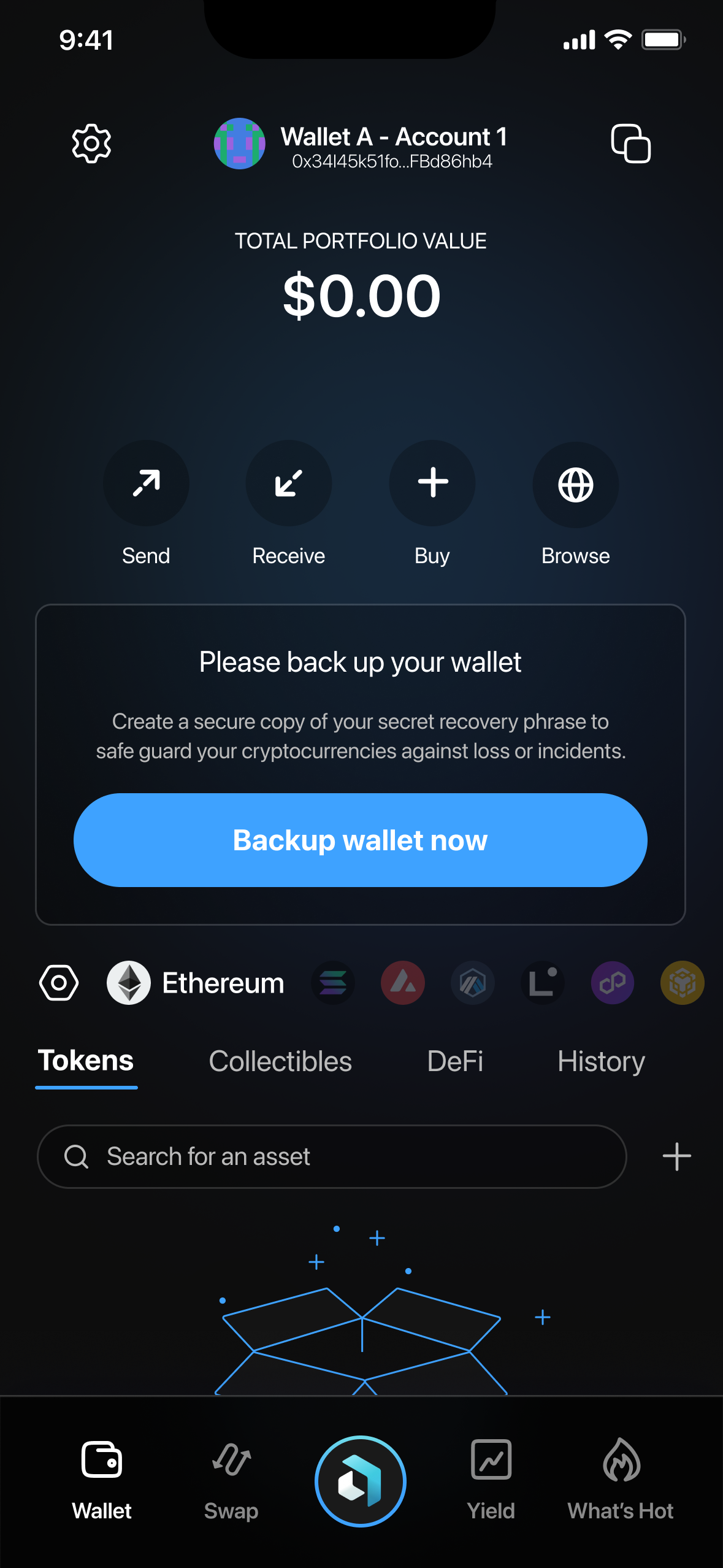
On the following screen, choose which wallet you'd like to back up. Select a specific wallet (e.g., "Wallet A") or "All Wallets."
Selecting Backup Method
Choose your preferred backup method:
- Backup on iCloud (recommended)
- Backup manually
Manual Backup Process
- If choosing manual backup, you will be presented with your recovery phrase (12 or 24 words). Carefully note down each word in the exact order shown.
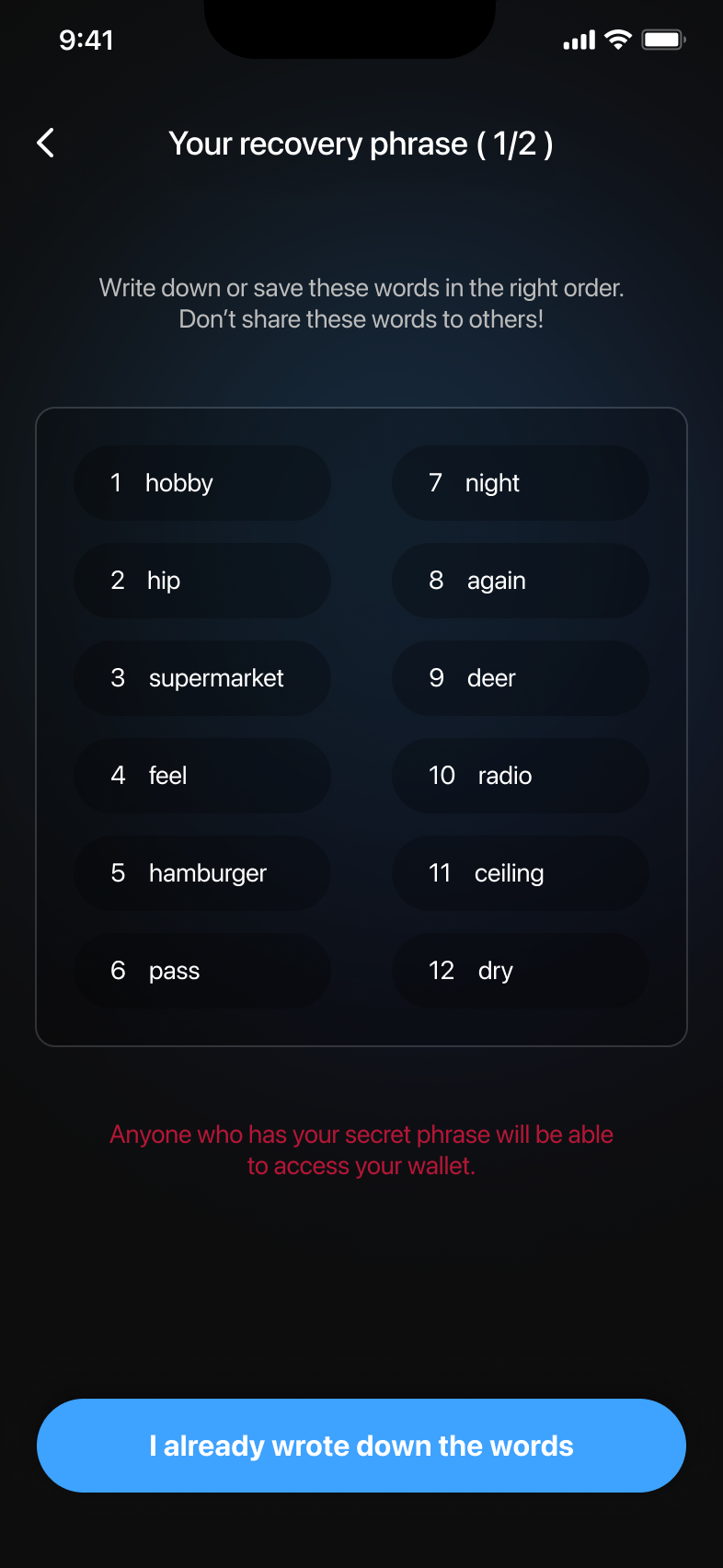
- After securely writing down the phrase, tap "I already wrote down the words".
- Verify your recovery phrase by selecting the prompted words in the correct order.
- Once correctly verified, tap "Confirm" to finalize the backup.
Completing Backup
After successful backup, a confirmation screen appears on top, confirming your wallet is backed up securely.
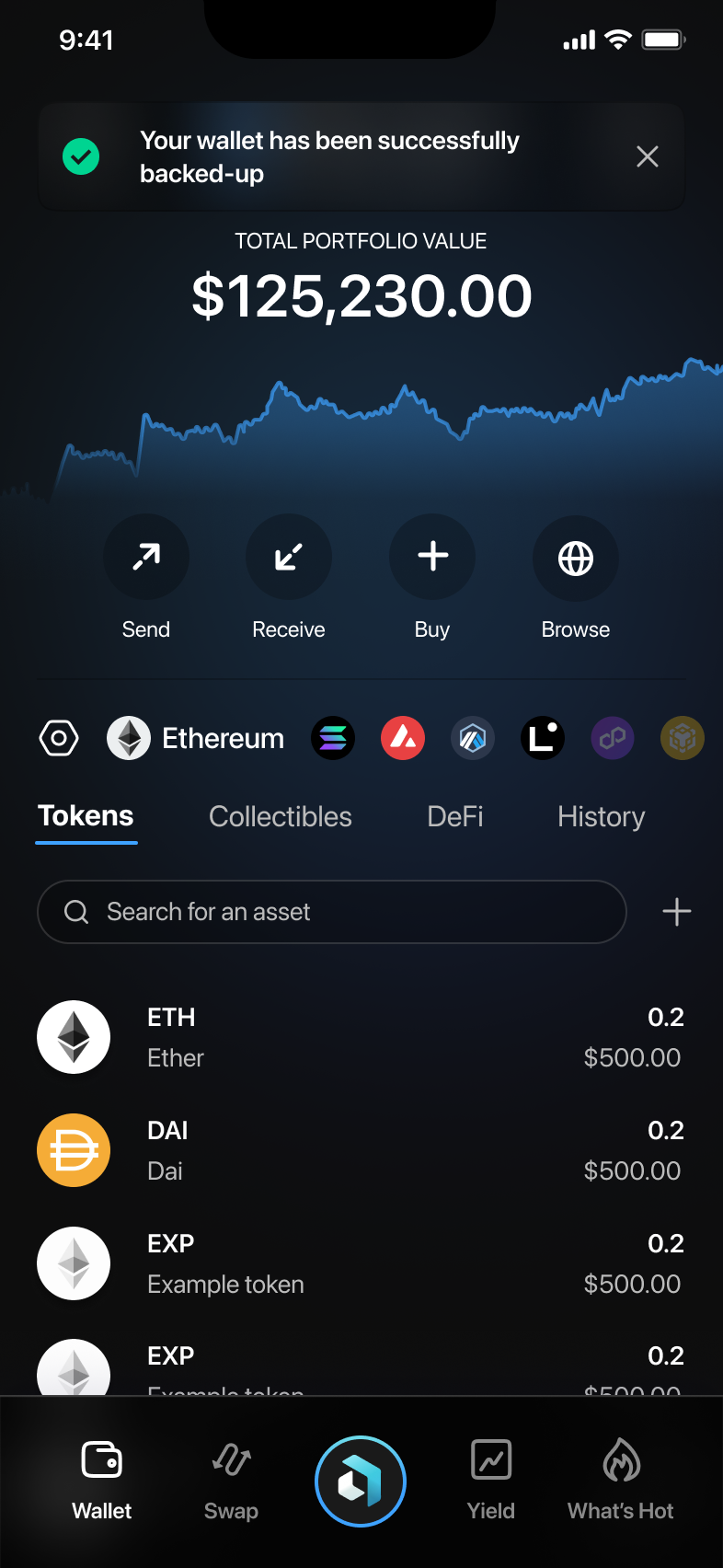
Ensure you store your recovery phrase securely, as it is essential for restoring your wallet access.